
Pictory AI Review: Quick Overview
| Overall Rating | 4.0 / 5 |
| Best For | Blog-to-video, text-to-video, content repurposing |
| Starting Price | $25/mo (annual) or $29/mo (monthly) |
| Free Trial | 14 days, no credit card, 3 video exports |
| Top Feature | Text-to-video with 18M stock assets |
| Biggest Limitation | 720p on Starter, no minute rollover |
| Coupon | SAVE20 — 20% off any plan → Get the discount → |
I tested pictory ai over a full week — running content through its engine, testing the ai voices, pushing the stock library, and comparing output against InVideo side by side. Here’s what actually happened. No fluff, no filler.
What Is Pictory AI?
This tool takes your written content — text, blog posts, articles, even PowerPoint decks — and turns them into short ai video clips with selected visuals, narration, and subtitles. No timeline editing. No camera. No editing software to install.

Founded in 2019 by Vikram Chalana and his team in Bothell, Washington, the company has grown to over 5,000 paying customers. They raised $4.72M across two seed rounds, with $3.9M ARR as of 2024. Everything runs in the cloud — nothing to download. You paste text or a URL, and the system builds a video around it.
The core pitch: if you already have written content sitting around — blog posts, newsletters, LinkedIn articles — Pictory’s ai simplifies the creation process by repurposing content into engaging videos without you needing to learn Premiere Pro or After Effects. That’s the niche it fills, and it does it better than most alternatives.
Who Is This Tool Built For?
- Content marketers turning blog posts into video content at scale
- YouTubers producing faceless explainer videos from text
- Affiliate marketers creating product review videos without filming
- Course creators converting training materials into narrated video lessons
- Agencies producing branded video for multiple clients
- Small business owners wanting professional looking videos without hiring an editor
If you need ai-driven avatars talking on camera, you want Synthesia or HeyGen instead. What Pictory does is turn text into video — stock footage, narration, subtitles, all assembled automatically.
How I Tested Pictory (Real Hands-On Experience)
I didn’t just read feature lists and regurgitate marketing material. I signed up, created a brand kit, wrote content, ran it through the ai-powered video editing workflow, applied a voice, and exported the final video. Then I ran the exact same content through InVideo to compare. Here’s what happened step-by-step:
Step 1: Brand Kit Setup
Logged in and immediately set up a brand kit. You can create a free trial account without a credit card — the trial includes paid plan features. I already have a paid plan so I logged in to my account. Here’s the Pictory dashboard after signing in:

For everyone getting started, I recommend creating a brandkit first. In the brandkit you can set colors, fonts, ai voices, ai avatars and many more. Click on the brandkit button and you’ll see the following screen where you can set the name, colors, fonts, etc. Full customization comes after creating the brandkit:

When you click the create button, more brandkit settings appear. Here you can customize the brandkit fully — set logos, brand colors, fonts, visuals, background music, ai voices, and ai avatars:

Step 2: Text-to-Video Test
Now let’s test the first feature — text to video. I pasted a 4-paragraph business brief into the text entry. Left all settings on default. Did not pick a template. The “Ask AI” feature can modify the text but I left it as-is. The engine took 55 seconds to select scenes and generate a preview:

Step 3: Voiceover, Avatar & Caption Customization
I applied the premium “Abby” voice from ElevenLabs (female, very realistic). Pictory allows you to clone your own voice too. Then I selected an ai avatar for the video and made a minor tweak — changed the caption color from default yellow to white for better readability on mobile:

Step 4: Export & Rendering
Hit generate. The tool warned it would take 5–10 minutes for processing, lip sync, and rendering (30 ai credits consumed). Pictory’s video generated in exactly 10 minutes. The rendering depends on Pictory’s GPU servers, not your browser. I was testing on a MacBook M1. The whole creation process was seamless.
Here’s the video created with Pictory without heavy editing:
InVideo Studio Comparison
While Pictory was rendering, I used the same text on InVideo Studio. Preview was ready in 30 seconds. But InVideo Studio doesn’t have enough features compared to Pictory — no avatars, no lip sync, and the generated voices are not as realistic. InVideo has another enhanced version called InVideo AI — we’ll compare it with Pictory later. InVideo Studio exported in 3 minutes flat because it skips processing entirely.

Here’s the InVideo Studio video for comparison — you have to select a template to create text to video, and the automated text-to-speech voices are not as realistic as Pictory’s ElevenLabs integration:
Pictory AI Video Editor Features
Text-to-Video
This is the core feature. Paste your text, and the system picks stock footage, adds narration, layers subtitles, and produces a complete video. From my testing, scene generation took under a minute. The engine gets the general vibe right — business content gets corporate B-roll, tech content gets screens and gadgets — but expect to manually replace maybe 20–30% of clips that don’t quite fit.
There’s also an “Ask AI” feature that can rewrite your text for better pacing. I left it off for testing, but it’s there if your first draft is too long or too dense.
Blog-to-Video: Turning Blog Posts into Engaging Videos
Paste any article URL and the tool pulls the text, summarizes it, and builds a video. This is where Pictory genuinely excels — it’s the best blog-to-video tool I’ve tested. The engine handles long-form videos (up to 30 minutes on Professional and Teams) and extracts the key points. For content marketers who already have blog libraries collecting dust, this feature alone justifies the subscription — turning blog posts into engaging videos has never been this drag-and-drop simple.
Text-Based Editing (No Editing Skills Needed)
Delete a sentence in the transcript, and the corresponding video segment disappears. No timeline scrubbing. No splitting clips. Just edit text. For someone who’s never touched a video editor, this is the most intuitive approach I’ve seen. Power editors will find it limiting — you can’t do fine-grained color grading or motion tracking — but that’s not the point. The point is speed. This editing process removes the steep learning curve of traditional tools.
AI Voiceovers & ElevenLabs Integration
Standard voices (unlimited, 7 languages) come with every plan. The real value is the ElevenLabs premium integration, which is frankly in a different league. On Professional, you get 120 minutes/month of hyper-realistic narration. On Teams, 240 minutes. The “Abby” voice I tested was nearly indistinguishable from a real narrator.
You can also clone your own voice on Professional and above. For faceless YouTube channels or a marketer who wants consistent branding, that’s a big deal.
Add Captions & Highlights
Subtitles are generated automatically with word-by-word dynamic rendering — they appear synced to the audio, which is what social platforms reward. You can configure 1–4 lines and adjust colors. Add captions in 29 languages using ai voices for multilingual reach.
The Highlights feature extracts short clips from long webinars, podcasts, or Zoom recordings. Upload a 45-minute recording and the system identifies the best 30–60 second segments for social media. Transcription took under 3 minutes in testing — impressively fast for producing videos from long-form content.
Stock Media Library
Starter gets 2 million clips from Storyblocks. Professional and Teams unlock 18 million assets including Getty Images — that’s the real differentiator. 5,000–15,000 royalty-free music tracks depending on tier. No extra licensing costs. For comparison, Synthesia and HeyGen have limited built-in libraries and expect you to bring your own footage.
Brand Kits & Templates
Set up colors, fonts, logo, preferred voices, and avatars once. Then every video automatically applies your branding. Starter gets 1 kit (fine for solo creators), Professional gets 5 (good for agencies with a few clients), and Teams gets 10. Enterprise gets unlimited. Everything is customizable, making it easier to produce professional content with consistent branding.
Pictory AI Pricing: Which Plan Is Worth It?
For a fuller breakdown of minutes, credits and billing options, see our Pictory pricing guide.
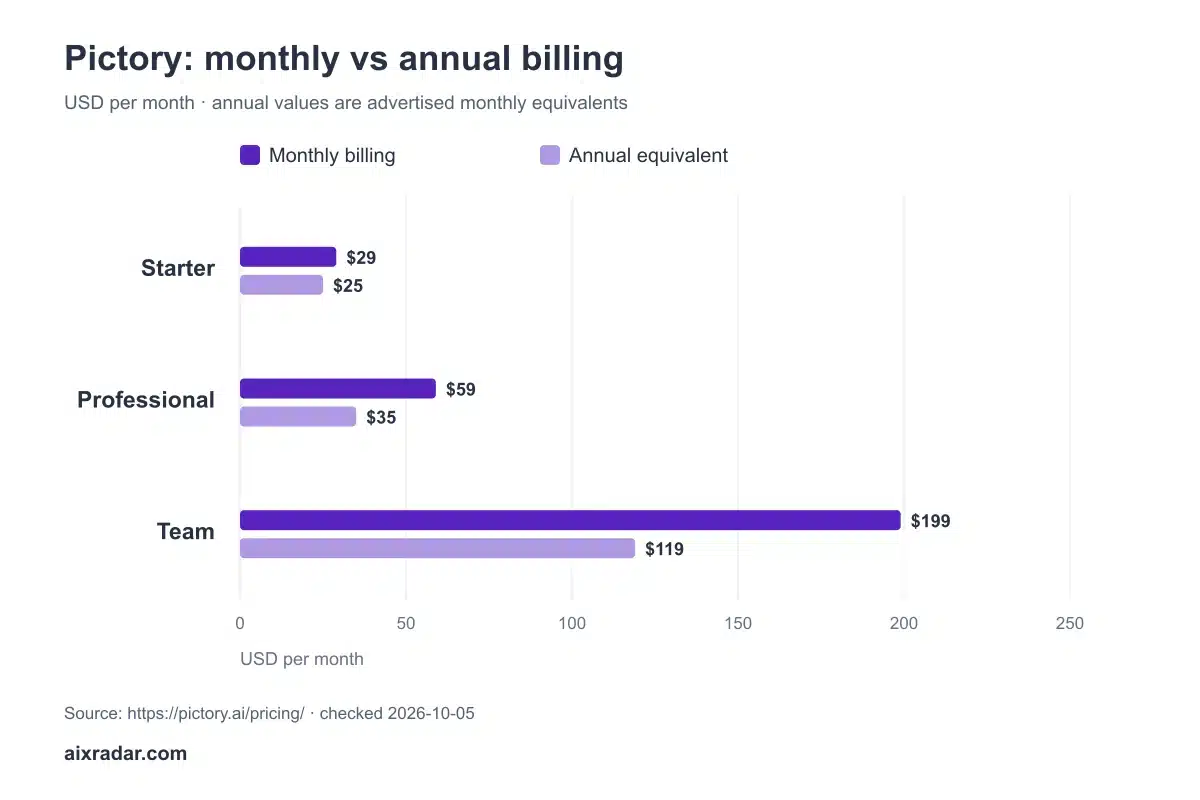
Here’s the cost breakdown as of May 2026. Annual billing saves significantly over monthly.
| Plan | Annual | Monthly | Video Min/mo | Resolution | Stock Assets | Brand Kits |
|---|---|---|---|---|---|---|
| Starter | $25/mo | $29/mo | 200 | 720p | 2M | 1 |
| Professional | $35/mo | $59/mo | 600 | 1080p | 18M | 5 |
| Teams | $119/mo | $199/mo | 1,800 | 1080p | 18M | 10 |
| Enterprise | Custom | Custom | Custom | 1080p+ | Unlimited | Unlimited |
Key limits to know before you pay:
- No minute rollover — unused minutes reset on the 1st of each month
- No incremental top-ups — hit your limit and you upgrade the whole plan or wait
- Starter caps at 720p — fine for social media, inadequate for YouTube
- No refunds — terms explicitly state all fees are non-refundable
- Optional add-ons at $8/mo each: Getty premium visuals, ElevenLabs voices
💰 Save 20% with code SAVE20 — works on both monthly and annual billing. Stack it with annual for the best deal: Professional drops to $28/mo. Get the coupon →


Which Plan Should You Pick?
Starter ($25/mo annual): Fine for testing the waters. 200 minutes and 720p is enough for social media clips. But you’ll hit the 720p ceiling fast if you care about YouTube quality. And 2 million stock assets (Storyblocks only) feels limited after a while. The ease of use is great though.
Professional ($35/mo annual): This is the sweet spot. 1080p output, 600 minutes, Getty Images access (18M assets), 5 brand kits, 120 minutes of premium narration, and video highlights extraction. If you’re producing more than 5 videos a month, this plan pays for itself in time saved.
Teams ($119/mo annual): For agencies and teams producing high volumes. 1,800 minutes, 10 brand kits, API access, and team collaboration. The jump from Professional to Teams is steep — only worth it if you actually need multiple seats and the extra 1,200 minutes.
Trial: 14 days, no credit card required, 3 video exports. Enough to test one real project end to end. Use all 3 exports on your most important content type to see if the output meets your standards.
Pros and Cons
What Worked Well ✅
- Beginner-friendly: The dashboard walks you through each step. My first video was done in under 10 minutes, including the time to set up a brand kit. Truly user-friendly for producing videos quickly.
- ElevenLabs integration is excellent: The “Abby” voice I tested sounded natural — not robotic. Having 120 minutes of this on Professional is a real advantage.
- 18M stock assets on Professional: Getty Images + Storyblocks is a massive library. No extra licensing, no extra cost. This alone would cost $30–50/mo if you subscribed separately.
- Text-based editing saves hours: Deleting transcript sentences to cut video segments is genuinely faster than manual editing for most content.
- Blog-to-video is best in class: Paste a URL, get a video. No other tool does this as cleanly.
- Brand kits keep output consistent: Set it once, apply it everywhere. Especially useful if you produce video for different brands or clients.
What Could Be Better ❌
- Scene selection is maybe 70% accurate: Roughly 20–30% of auto-selected clips don’t match the context well. You’ll need to manually review and swap them. Not a dealbreaker, but it adds time.
- 720p on Starter is a real limitation: Social media is fine at 720p, but if you’re publishing to YouTube or embedding on a website, it looks dated. You’re essentially forced into Professional for decent output.
- No minute rollover: Produce 100 minutes in a slow month? Those 100 extra minutes vanish on the 1st. This creates quota anxiety.
- Rendering takes 5–10 minutes: For processed videos (avatar, lip sync, subtitles), the server-side queue can be slow. InVideo Studio exported in 3 minutes because it skips processing entirely.
- No ai-driven avatars yet: They’re listed as “coming soon” as of May 2026. If you need avatar-led talking head videos, Synthesia or HeyGen are better choices right now.
- 7 languages for standard voices: Compared to Synthesia’s 140+ or HeyGen’s 175+, this is thin. The premium ElevenLabs integration adds 29 languages, but standard voice selection is limited.
Pictory vs Alternatives (Quick Comparison)
| Feature | Pictory | InVideo | Synthesia | HeyGen |
|---|---|---|---|---|
| Starting Price | $25/mo | ~$25/mo | ~$22/mo | $29/mo |
| Best At | Blog/text→video | Template editing | Avatar videos | Avatar + dubbing |
| Stock Library | 18M (Pro+) | Large | Limited | Limited |
| Avatars | Coming soon | No | 230+ | 700+ |
| Languages | 7 (std) / 29 (premium) | 50+ | 140+ | 175+ |
| Resolution | 720p–1080p | 1080p | 1080p | 1080p |
| Trial | 14 days | Limited | 1 min preview | 1 min preview |
| Text-to-Video | ✅ Best-in-class | ✅ Good | ❌ | Basic |
For an alternative focused on avatars and short videos, read our Zebracat AI review. Short version: if you need blog-to-video, this tool wins. If you need avatars talking on camera, go Synthesia or HeyGen. I also tested Zebracat AI — its built-in avatars are among the most realistic I have seen, and processing is noticeably faster than Pictory. If you want a full editor with templates, InVideo Studio is better — but its capabilities are thinner. Descript is another option worth considering for podcast-to-video workflows.
Here’s how InVideo Studio’s pricing compares — note that InVideo Studio has different tiers and even offers lifetime deals:


Limitations You Should Know
Most reviews gloss over the rough edges. I ran into these directly when tested pictory:
- Rendering speed depends on server load: My test video took exactly 10 minutes. The official estimate is 5–10 minutes, and during peak times it can be slower. Not a dealbreaker, but if you’re on a tight deadline, plan for it.
- No social scheduling: Pictory creates the video. That’s it. No posting to YouTube, no scheduling to LinkedIn. You download and upload manually.
- No refund policy: Once you pay, that’s it. Test thoroughly during the 14-day trial. Set a calendar reminder to cancel before you’re charged.
- Storage limits are real: 5GB on Starter fills up fast when you’re producing multiple drafts. Professional’s 20GB is more reasonable.
Who Should Use This Tool (And Who Shouldn’t)
✅ Worth It If You:
- Already produce written content (blogs, newsletters) and want to produce engaging videos without learning editing skills
- Run a faceless YouTube channel and need consistent video output for your online presence
- Need to create training videos from PowerPoint decks on a regular basis
- Manage marketing for a brand or small business and want to scale video creation across social channels
- Publish product review content and want video versions to complement written reviews
- Are an entrepreneur or creator who needs to produce videos quickly without a steep learning curve
❌ Skip It If You:
- Need ai-driven avatars or talking-head videos (Synthesia, HeyGen)
- Want a full editor with timeline, transitions, color grading (DaVinci Resolve, Premiere Pro)
- Need multilingual content in more than 7–29 languages
- Have variable production volume (no minute rollover hurts sporadic users)
- Are on a tight budget and can’t justify $35/mo for 1080p output (Starter’s 720p won’t cut it for professional use)
Frequently Asked Questions
Is Pictory AI free?
There is a 14-day trial with no credit card required, giving you access to paid features and up to 3 video exports. After the trial, you need a paid subscription starting at $25/mo (annual billing) or $29/mo (monthly). There is no permanent free tier. The ease of use during testing was impressive.
What is the best Pictory AI coupon code?
The most reliable code is SAVE20, which gives 20% off any plan — monthly or annual. Stack it with annual billing for maximum savings. For more codes and a full breakdown, see our coupon page.
Does Pictory have a money-back guarantee?
No refunds on paid subscriptions. Their terms state all fees are non-refundable. However, the 14-day trial lets you test the platform before committing. Technical details: set a cancellation reminder before your trial ends if you decide not to continue.
Can I use this for YouTube?
Yes, but you need the Professional plan or above for 1080p output. The Starter plan caps at 720p, which looks dated on YouTube. With Professional ($35/mo annual), you get 600 video minutes and 18M stock assets — enough for consistent YouTube output.
Is this better than InVideo?
It depends on your workflow. Pictory is better at text-to-video and blog-to-video with its automation and larger stock library. InVideo Studio is better for template-based editing with faster rendering (3 minutes vs. 10 minutes). InVideo AI (their separate product) is a closer competitor among video creation tools. Also consider Descript for podcast-to-video workflows.
How long does video generation take?
Scene preview generation takes under 1 minute. Full video export with narration, lip sync, and avatar takes 5–10 minutes depending on server load. My test video rendered in exactly 10 minutes on Pictory’s servers. The competitor exported the same content in 3 minutes because it skips processing.
Final Verdict: Is Pictory AI One of the Best AI Tools for Video Creation?
This is one of the best ai tools I’ve tested for one specific job: turning existing written content into publishable videos with ai without learning editing skills. The text-based editing workflow, the 18-million-asset stock library, and the ElevenLabs voice integration are genuinely good — not marketing fluff, actually useful features that simplify your workflow and save hours for any creator or marketer.
But it’s not for everyone. If you need ai avatars, you’ll have to wait (or switch to Synthesia). If you produce video inconsistently, the no-rollover policy will frustrate you. And if you’re on a tight budget, Starter’s 720p limitation essentially forces you into Professional — which is the plan most people end up on anyway.
My recommendation: Professional at $35/mo (annual) is the plan that makes it worth it. You get 1080p, 600 minutes, Getty Images, and premium voices. With the SAVE20 code, it drops to $28/mo. That’s $336/year for what would otherwise require a stock footage subscription ($30/mo) plus a voiceover service plus editing time. The math works.
Test Pictory during the 14-day trial. Use all 3 exports on real content, not throwaway tests. If the output quality meets your standards, the Professional plan is a solid investment for your online presence and video campaign needs.
Rating: 4.0 out of 5 — Best-in-class for blog/text-to-video, held back by 720p on Starter, no minute rollover, and the still-pending avatar feature.
🎁 Ready to try it? Start your 14-day trial → Get started → | Save 20% with code SAVE20 → Get the coupon →
Last updated: May 2026. This pictory ai review contains affiliate links — if you purchase through our links, we may earn a commission at no extra cost to you.